- In the Reports module, click Transaction History.
The Transaction History report is displayed.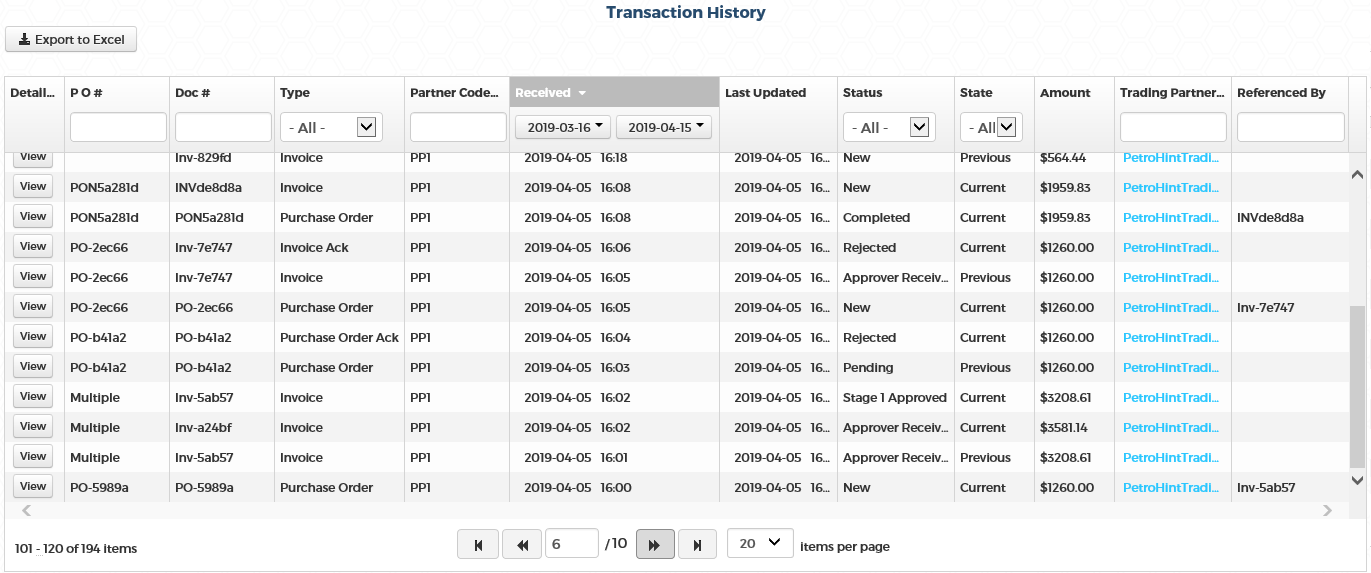
- In the Received date range area, define the report period by selecting a Start Date and End Date.

Once your dates are selected, the documents for your selected date range will appear in the document list.
|
NOTE |
Keep in mind the following when generating your Workbench Billable Documents report:
|
- Select "New" from the Status drop-down menu.

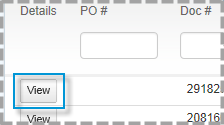
- If you want to preview a specific document displayed in the report, click View in the Details column on the corresponding document row.
|
NOTE |
This report can be exported.
For information on exporting this report, refer to Exporting This Reports, page 1. |
If you invoice on the Workbench Desktop (Legacy) as well, you will need to run a second report and combine your numbers for accurate results. For more details, refer to Generating a Workbench Desktop (Legacy) Billable Documents report, page 1.
Updating Account Billing Details
To make changes to your Workbench Account billing information, please refer to Updating Workbench Account Billing Details, page 1.